
How to add thumbnails to your videos
1. Access the Thumbnail Feature

- Go to the video canvas page on Vubli.
- Click on the thumbnail icon on the top right of the video player (hover to see the label).
2. Choose Thumbnail Option

- You have two options:
- Select a Frame from Video
- Upload an Image
3. Select a Frame for Thumbnail

- If selecting a frame:
- A popup will open for you to choose a frame.
- Use the play button or scrubber to find your desired frame.
- Click 'Set as Thumbnail' once you find it.
4. Upload Your Own Image

- If uploading an image:
- Click on 'Upload Image'.
- Select an image from your device and click 'Open'.
- Click 'Done' to set the uploaded image as your thumbnail.
5. Understand Thumbnail Usage on Different Platforms
- YouTube, TikTok, and X:
- Thumbnail will be added as the first frame in the video.
- Instagram, Facebook, and LinkedIn:
- Thumbnail will be uploaded as a separate image; video will not be re-rendered.
6. Additional steps needed for YouTube Shorts
Right after you've posted your video with your thumbnail to YouTube via Vubli:
-
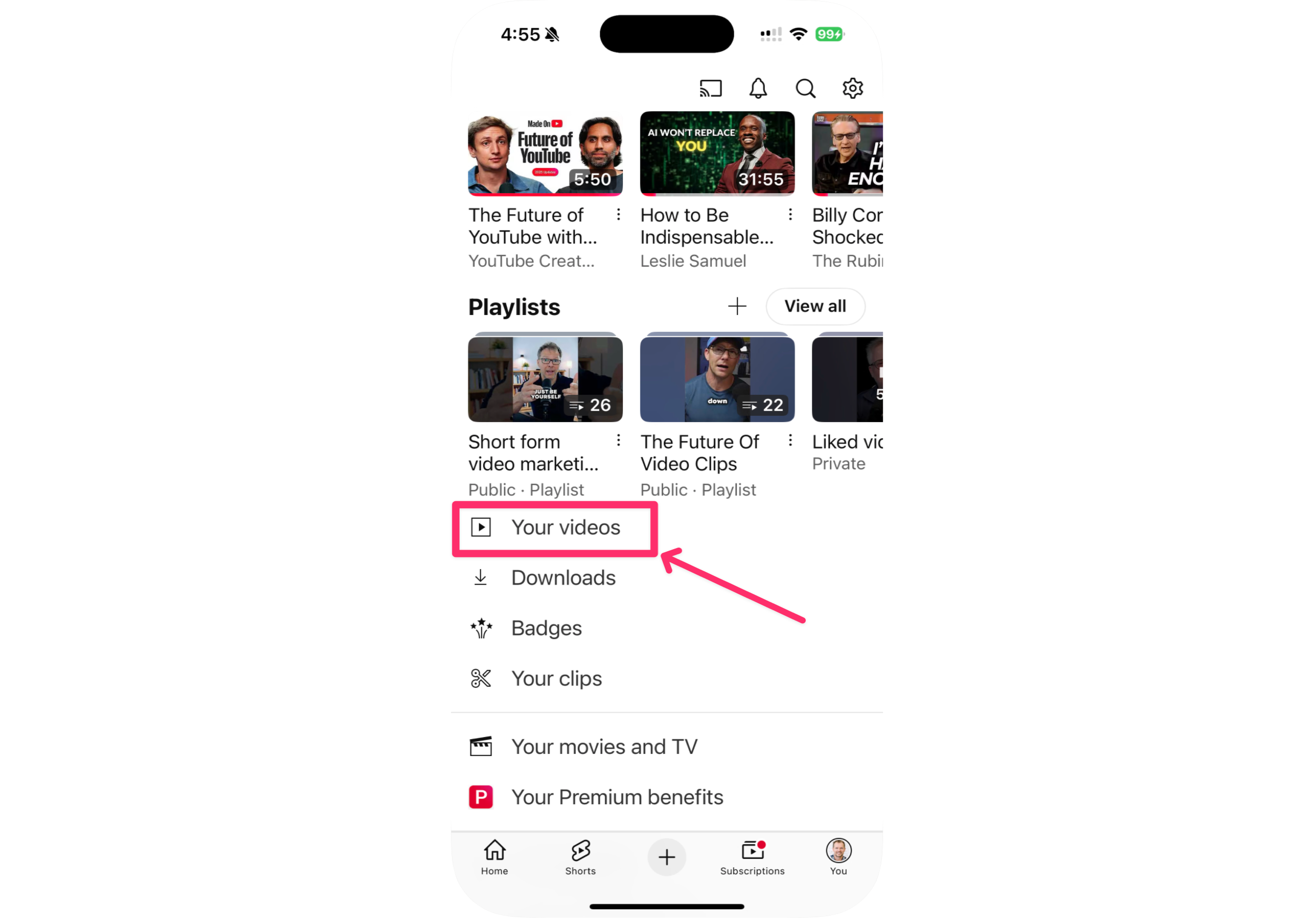
Go to the your channel on the YouTube app on your mobile, and tap on "Your videos".
-
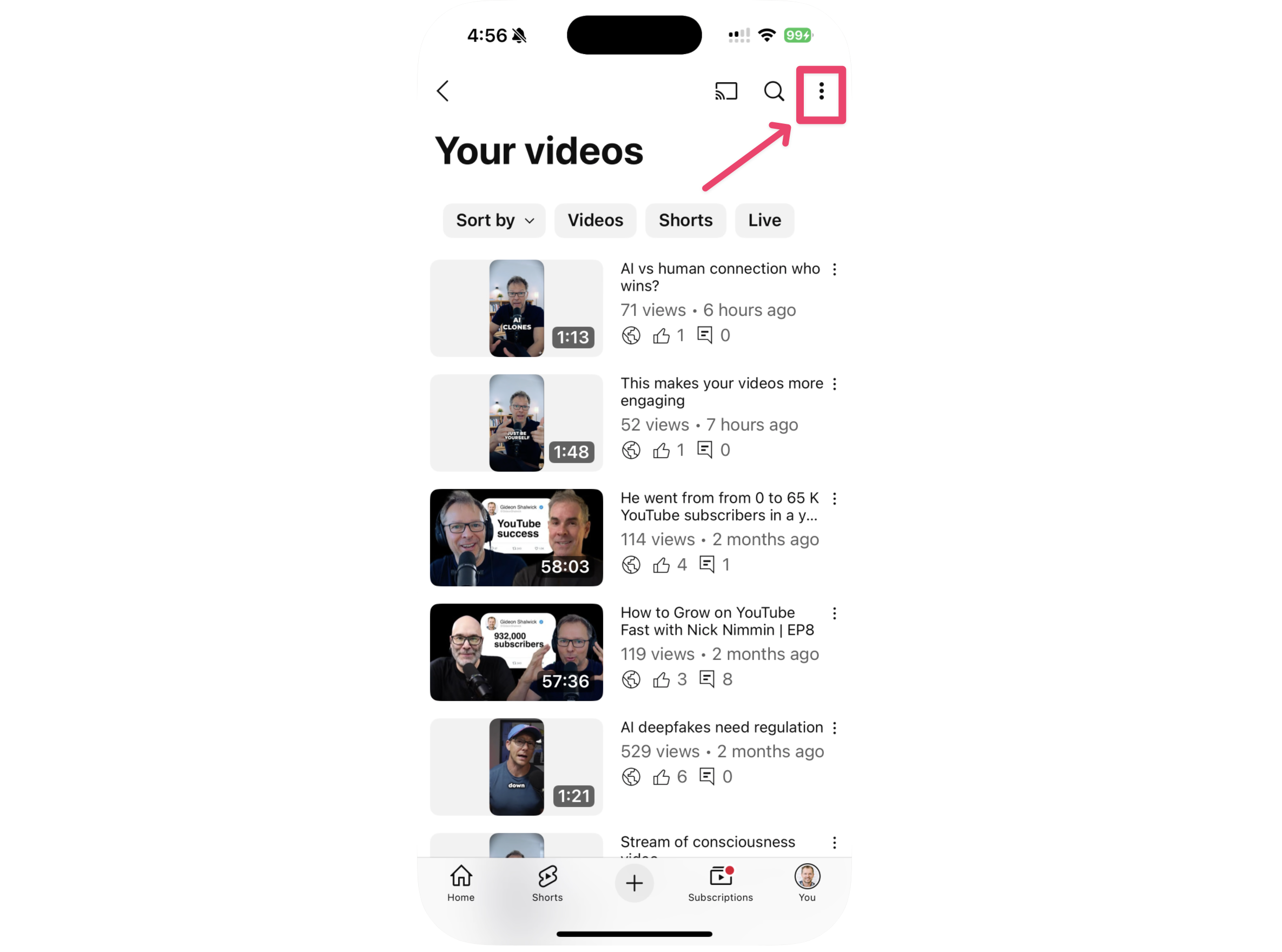
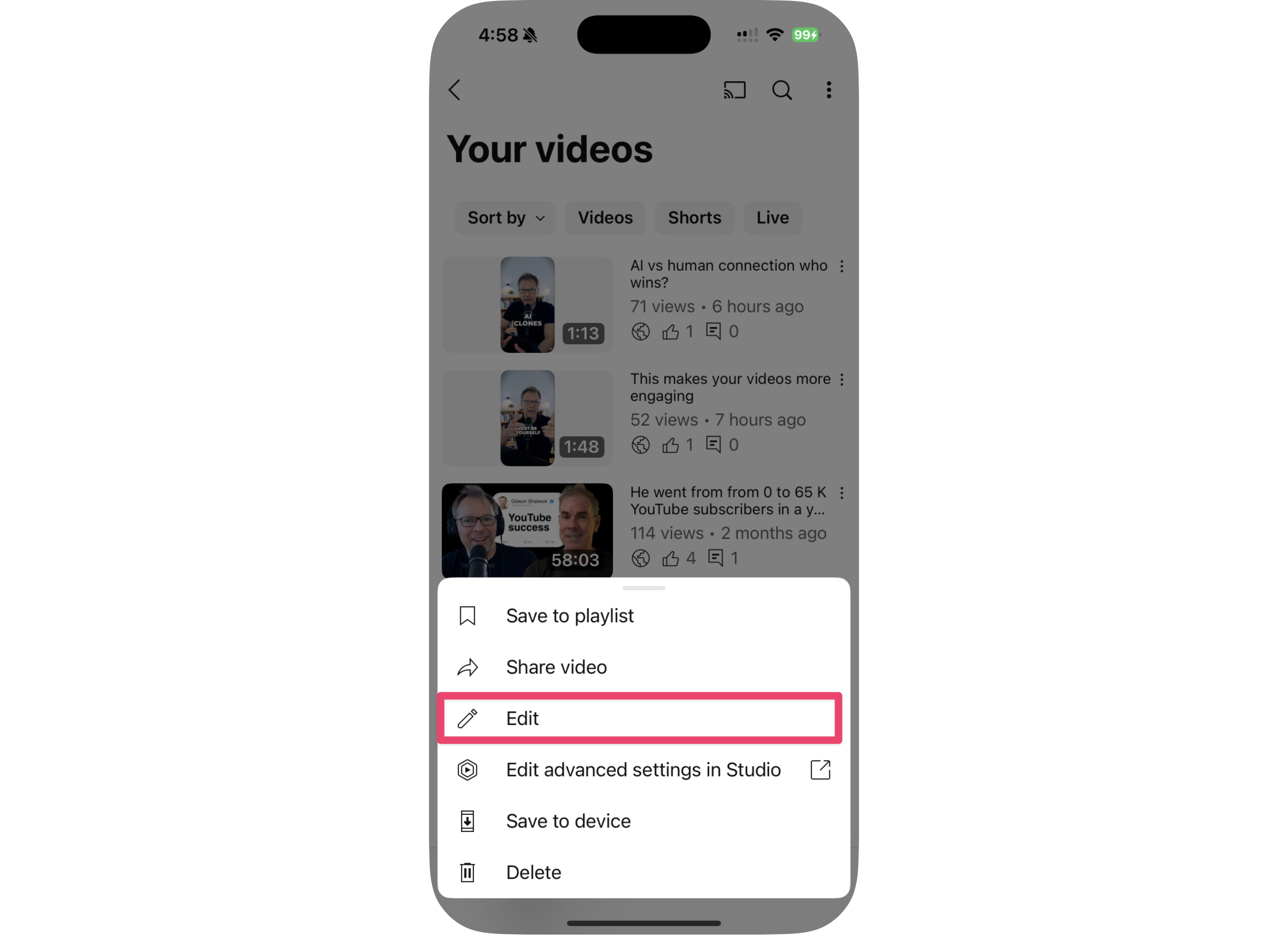
Find your video and click on the three dots to select 'Edit'.
-
Then, click on the edit option.
- Click the pencil icon to change the thumbnail.

- Ensure the first frame is selected (it should be your uploaded thumbnail).

- Click the checkbox and then hit 'Save'.


8. Final Recommendations
- Check your video in the Shorts tab or sort by all videos to confirm the thumbnail is set.
- Reach out through the support system for any issues or suggestions.